
How to Set Up Product Variants (Size, Color, Style)
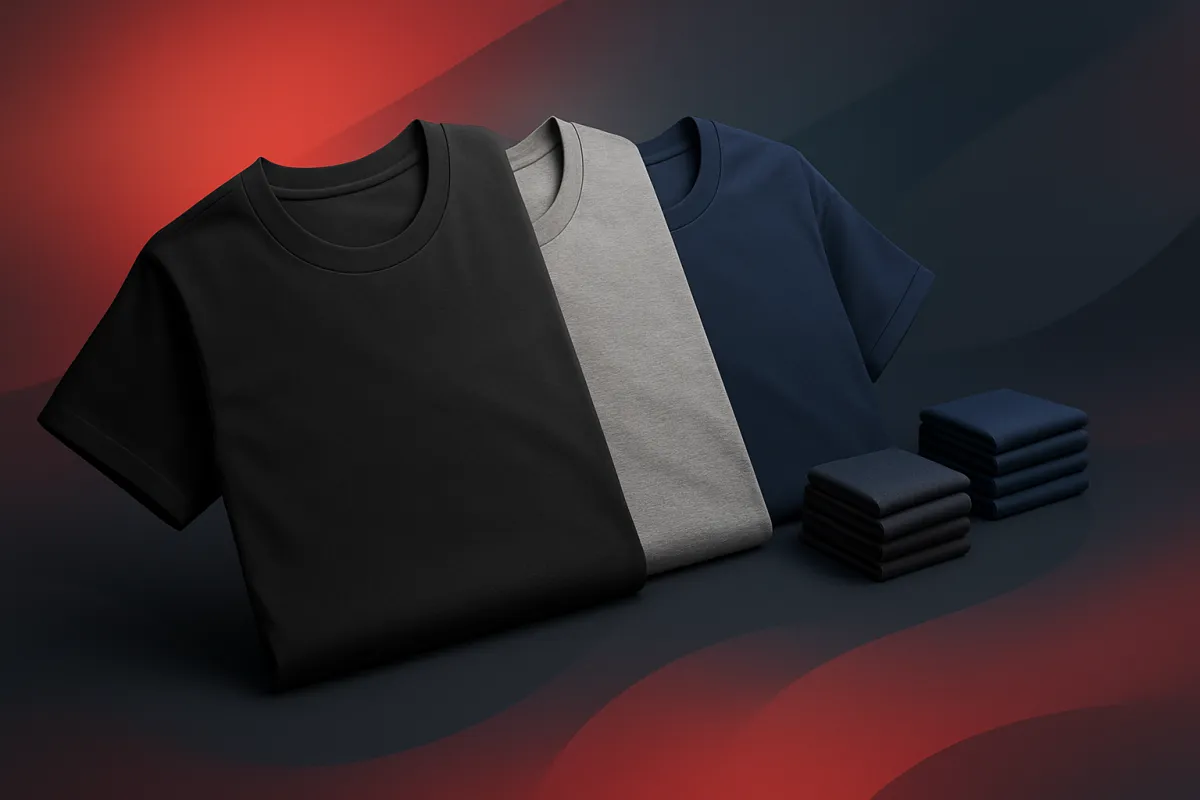
Learn how to add size, color, and style options to a single product listing, track stock for each one, and make it easy for shoppers to pick the right version.
If you sell a t-shirt in three sizes and four colors, you do not want twelve separate listings cluttering your store. You want one clean product page where the shopper picks the size and color they want. That is exactly what product variants do. In this guide you will learn what variants are, when to use them, and how to set them up step by step, even if this is your first online store.
What product variants actually are
A variant is a version of the same product. Think of a hoodie. It is one product, but it comes in small, medium, and large, and maybe in black, grey, and navy. Each combination of size and color is a variant.
Instead of making a new listing for every combination, you create one product and add options to it. The shopper lands on a single page, chooses "Large" and "Navy", and adds it to the cart. Behind the scenes, your store knows exactly which version they bought.
The words you will see most often are:
- Option - the type of choice, like Size or Color.
- Value - the specific choices inside that option, like Small, Medium, Large.
- Variant - one full combination, like "Medium / Black".
Once you understand those three words, the whole thing gets a lot simpler.
When you need variants (and when you don't)
Variants are great when you sell the same item in different versions. But they are not always the right tool. Here is a quick way to decide.
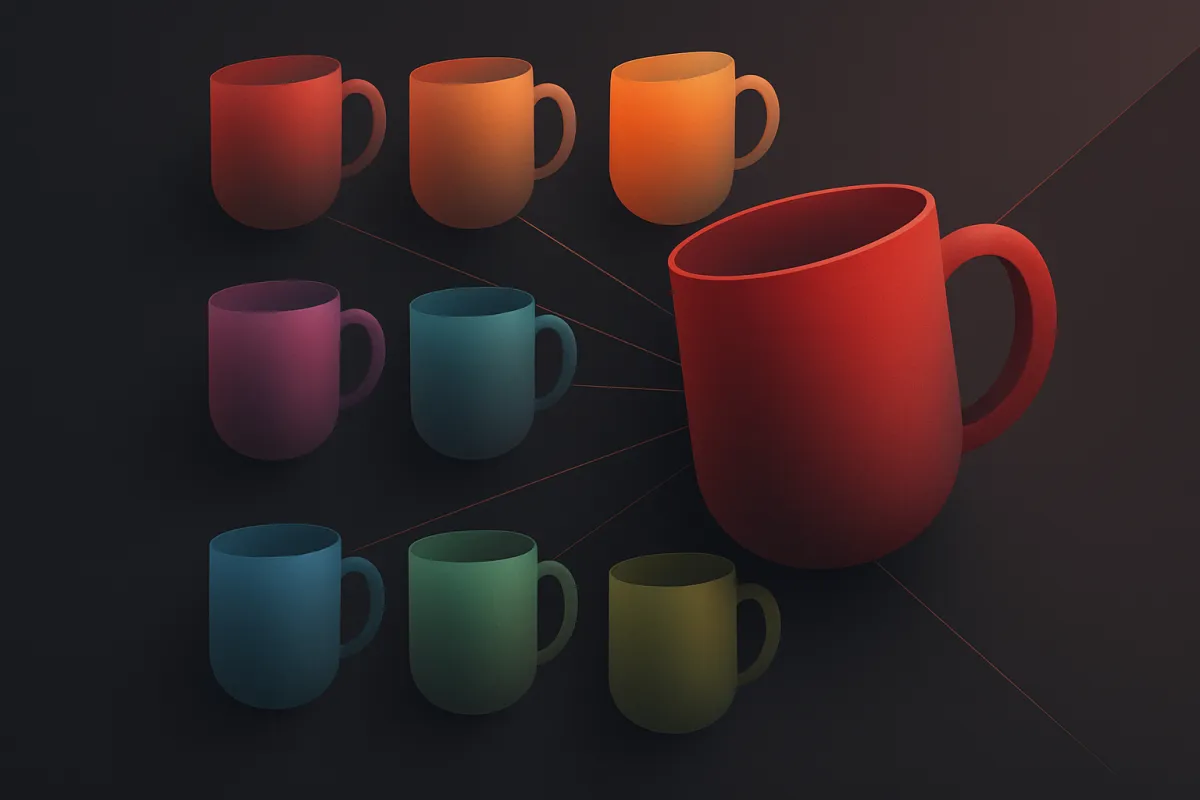
Use variants when the products are basically the same thing with small differences, and the price is usually the same or close. A mug in three colors. A candle in three scents. A phone case for different phone models. The buyer expects to pick from one page.
Use separate products when the items are genuinely different, need their own photos and descriptions, or sit in different categories. A t-shirt and a tote bag should not be variants of each other, even if they share a design. They are different products.
A simple test: if a shopper would search for them separately, list them separately. If they would expect to find both on the same page, use variants.
How to set up product variants step by step
The exact buttons change from platform to platform, but the flow is almost always the same. Here is the order to follow.
- Create or open the product. Add your main title, description, and photos first. This is the base product that all variants will share.
- Add your first option. Name it clearly, like "Size". Then type in the values: Small, Medium, Large. Keep the names short and standard so shoppers instantly understand them.
- Add a second option if you need one. For example, "Color" with values Black, Grey, Navy. Your store will now create every combination automatically, so Small/Black, Small/Grey, and so on.
- Set the price for each variant. If everything costs the same, leave the base price. If a larger size or a premium material costs more, adjust that specific variant. If you are unsure how to land on the right numbers, our guide on how to price your products for an online store walks through it clearly.
- Add stock counts. Enter how many you have of each variant. This is the part beginners skip, and it causes the most headaches later. More on that below.
- Add variant photos where it matters. For color options, show each color. When a shopper clicks "Navy", they should see the navy version, not the black one.
- Save and preview. Open your own product page like a customer would. Pick a few combinations. Make sure the price, photo, and stock update the way you expect.
That is the whole setup. Two options and a handful of values will cover most small stores. You rarely need more than that.
How to track stock for each variant
This is where a store lives or dies. If you track total stock instead of per-variant stock, you will oversell. Someone will order the last "Large / Navy" hoodie that you actually ran out of two days ago, and now you have an unhappy customer and a refund to process.
Set a separate stock number for every variant. When "Medium / Black" hits zero, your store should either hide it or show it as sold out, while the other sizes stay available. A good store does this on its own once you enter the numbers.
A few habits that keep things clean:
- Update stock the moment you restock or sell offline, so your online numbers stay honest.
- Turn on low-stock alerts if your platform offers them, so you are warned before you sell out.
- Decide what happens at zero. Hiding a sold-out variant looks tidy, but showing it as "sold out" tells shoppers the item is popular and coming back.
If you handle a lot of orders, it also helps to spell out your delivery timelines up front. A clear shipping policy that sets expectations saves you from a flood of "where is my order" messages, especially when one variant sells faster than the rest.
Make it easy for shoppers to choose
Setting up variants is half the job. The other half is helping people pick the right one without second-guessing. Confusion at this step is a common reason carts get abandoned.
Use plain, familiar labels
Call it "Size", not "Dimension profile". Use words your buyers already know. If your sizes run small or large, say so right on the page. A short note like "Runs small, size up" prevents returns.
Show the right photo for each choice
People buy with their eyes. When someone selects a color, the main image should switch to that color. If it does not, they will worry they are ordering the wrong thing.
Add a size or fit guide
For clothing, shoes, or anything with measurements, link to a simple size chart. You do not need anything fancy. A small table of measurements answers the question before it is asked.
Answer the common questions before they ask
Fit, material, care, and delivery questions come up again and again. A short FAQ section that answers buyer questions right on or near the product page keeps shoppers moving toward checkout instead of leaving to email you.
Common mistakes to avoid
A few small slips trip up most new sellers. Watch for these.
- Too many options. If a shopper faces size, color, material, and pattern all at once, they freeze. Keep choices to what truly matters.
- Inconsistent naming. "Sm", "Small", and "S" across different products looks messy and confuses people. Pick one style and stick with it everywhere.
- Forgetting variant photos. A color option with no matching image feels unfinished and lowers trust.
- Ignoring stock. Overselling one variant is worse than never listing it. Keep numbers current.
- Hiding the price change. If a larger size costs more, make the new price update clearly when the shopper selects it. Surprises at checkout kill sales.
One more thing that quietly builds confidence: real feedback from other buyers. Displaying customer reviews that win buyers near your variants, especially notes about fit and quality, reassures the next shopper that they are picking the right version.

A quick example to tie it together
Say you sell scented candles. You have one product, "Soy Candle", with two options. Option one is Scent, with Vanilla, Lavender, and Sandalwood. Option two is Size, with Small and Large.
That gives you six variants. You set the small size at your base price and the large a bit higher. You add a photo for each scent so the label matches what the buyer picked. You enter stock for all six. When Lavender Large sells out, the page shows it as unavailable while the rest stay live. One clean listing, six real choices, and no confusion.
Product variants sound technical, but they come down to one idea: group the same product's options in one place and keep the stock honest. Start with your best-selling item, add one or two options, and preview it as a customer would. If you would rather skip the manual wiring, a builder like vq.pe lets you add variants, track stock per option, and take payment in one flow. Pick one product today and set it up. The rest gets easy from there.