
How to Turn Your Store Into an Installable PWA
Let customers add your store to their phone home screen like a real app, no app store needed. Here's what a PWA is and how to set one up step by step.
Imagine a customer buys from your store, taps a small button, and now your shop sits on their phone home screen like any other app. No app store, no download wait, no huge file. That is what a Progressive Web App, or PWA, does. It turns your normal website into something that feels like a real app, and in this guide you will learn what it is and how to turn your store into one.
The best part? You do not need to be a developer, and you do not need to build a separate iPhone and Android app. Your website does the job.
What a PWA actually is (in plain words)
A PWA is just your website with a few extra powers. It is still the same store people visit in their browser. But with the right setup, it can do three things a normal site cannot.
- It can be installed. Customers can add your store to their home screen with an icon, just like an app.
- It opens full screen. When they tap the icon, your store opens on its own, without the browser bars around it. It feels clean and app-like.
- It loads fast, even on weak signal. A PWA can save parts of your store so pages open quickly the next time, and it still works when the internet is slow or drops for a moment.
Think of it like this. A normal website is a shop people have to walk to every time. A PWA is a shop they keep a key to, sitting right in their pocket.
Why a PWA is worth it for a small store
You might be wondering if this is overkill for a small shop. It is not. Here is why it helps.
People come back more often. An icon on the home screen is a reminder. Every time they unlock their phone, your store is right there. That gentle nudge brings back visitors who would otherwise forget you.
It feels trustworthy. A store that loads fast and behaves like a proper app looks more professional. That matters, because trust is what makes people hand over card details. If you want to go further on this, our guide on how to add trust badges and security signals to your checkout pairs well with a fast PWA.
You skip the app store. Building real apps for Apple and Android is expensive and slow. App stores also take a cut and have strict review rules. A PWA gives you most of the benefit with none of that hassle. You update your website, and the app updates itself.
It is friendly on data and storage. A PWA is tiny compared to a full app. Customers on cheaper phones or limited data plans can install it without a second thought.
What you need to have a working PWA
Under the hood, a PWA needs a few technical pieces. You do not have to write these by hand if you use a modern store builder, but it helps to know what they are.
- HTTPS (a secure site). Your store must load over a secure connection, the kind that shows a padlock in the browser. PWAs simply will not work without it. Most builders give you this for free.
- A web app manifest. This is a small file that tells the phone your store's name, its icon, and how it should open. It is what lets your shop appear as an installable app.
- A service worker. This is a small background helper that saves parts of your site so pages load fast and still open when the connection is poor. It is the piece that gives the offline, app-like feel.
- An app icon. A clean, square logo image the phone uses for the home screen button.
If those terms sound scary, relax. On a hosted platform they are handled for you. You focus on your products and your logo, and the technical parts run in the background.
How to turn your store into a PWA, step by step
Here is the simple path most small store owners can follow.
Step 1: Make sure your site is secure
Check that your store loads with https and shows a padlock. If it does not, sort this out first. It protects your customers and it is required for a PWA. Good builders switch this on automatically.
Step 2: Add a clear app name and icon
Pick a short name that fits under a home screen icon, usually your brand name. Then upload a simple, square logo. Keep it bold and easy to recognise at a small size. Avoid tiny text in the icon, because it turns into a blur on the screen.
Step 3: Turn on the PWA settings
On most modern platforms there is a setting to enable app install, or it is built in by default. This creates the manifest and service worker for you. If you are on a builder like vq.pe, the store, checkout, and mobile app-like behaviour come together, so you are not gluing separate tools yourself.
Step 4: Test the install on a real phone
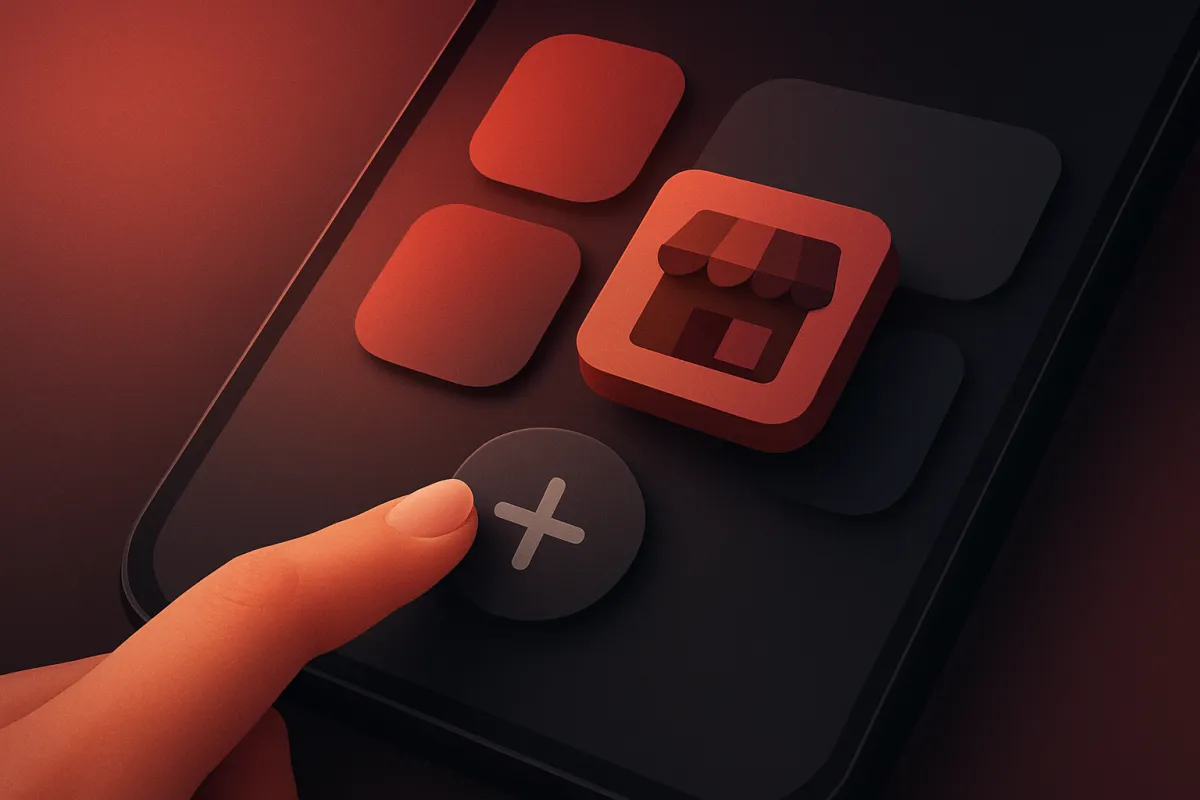
Open your store on your own phone. On Android, the browser usually shows an "Add to home screen" or "Install" prompt. On iPhone, open the Share menu in Safari and tap "Add to Home Screen." Do it, then tap the new icon and check that your store opens full screen and works.
Step 5: Invite customers to install it
Most people do not know they can install a website. So tell them. A friendly line like "Add our store to your phone for one-tap access" placed near the top of your homepage or after checkout works well. You can also mention it in your order confirmation message.
Make your store fast before you make it installable
A PWA cannot fix a slow, heavy store. If your pages crawl, installing them just puts a slow shop on the home screen. So fix speed first.
- Shrink your images. Big photos are the top reason stores load slowly. Use properly sized images, not giant files scaled down in the browser.
- Keep pages simple. Too many pop-ups, widgets, and fancy effects drag load time down. Cut what does not earn its place.
- Watch where people drop off. A little data goes a long way. Learning to read your store analytics to find what loses sales shows you which slow or confusing pages need attention.
Do the cleanup, then wrap it in a PWA. Fast site plus one-tap access is a strong combination.
Common questions before you commit
A few honest points, so you know what you are getting.
iPhone support is a little more limited. Android handles PWAs very smoothly, with install prompts and notifications. Apple supports installing to the home screen too, but some features are more restricted and this can change over time. For a store, the core benefit, an installable icon that opens your shop, works on both.
It is not a full native app. A PWA cannot do everything a heavy native app can. But for selling products, browsing, and checkout, it covers what most small stores need.
You still update one place. When you add a product or change a price on your website, the installed app shows the change. There is no separate app to maintain.
A quick real example
Say you run a small candle shop. Right now, regulars have to search your name or dig through bookmarks each time. You turn on the PWA setting, upload your square logo, and add a small "Add to your phone" note under your header. A repeat buyer taps it, and your shop icon lands next to their messaging apps. Two weeks later she is out of her favourite scent, taps the icon, and reorders in under a minute. That is the whole point: less friction, more return visits.
You do not need to build this by hand or hire anyone. Make your store fast, add a clean icon, switch on the app install option, and test it on your own phone today. Once customers can carry your shop in their pocket, coming back becomes the easy choice, and easy choices are the ones people make.