
Optimize Product Pages for Google Shopping & Image Search

Learn how to optimize your product pages so they show up in Google Shopping and image search, bring in free traffic, and turn curious searchers into buyers.
When someone searches Google for a product, they often see pictures and prices before they see any words. Those come from Google Shopping and Google image search, and both can send you free buyers if your product pages are set up right. The good news is you don't need to be technical. In this guide you'll learn how to optimize your product pages for Google Shopping and image search step by step, using plain settings you already have.
How Google finds and shows your products
Google pulls product details in two main ways. First, from a product feed, which is just a neat list of your products with their titles, prices, images, and stock. This feed feeds Google Shopping, the little product cards you see at the top of results. Second, Google reads your actual product page and the images on it, which is what powers image search.
So you're really feeding two hungry systems. One wants clean, structured data. The other wants clear pictures and honest descriptions. When you do both well, the same product can show up as a Shopping card, an image result, and a normal blue link. More places to appear means more chances to get clicked.
Write product titles the way people search
Your product title does a lot of heavy lifting. Google uses it to decide what your product is and who to show it to. A title like "Blue Mug" tells Google almost nothing. A title like "Handmade Ceramic Coffee Mug, 350ml, Matte Blue" tells it the material, the type, the size, and the color.
Follow this simple order when writing a title:
- Start with the main product name (what it actually is).
- Add the brand if you have one.
- Include key details people search for: size, color, material, or model.
- Keep it readable, not a pile of keywords stuffed together.
A good test: read your title out loud. If it sounds like something a real person would type into a search box, you're on the right track. If it sounds like a robot wrote it, trim it down.

Make your product images work harder
Images are the heart of both Google Shopping and image search. If your photos are blurry, dark, or cluttered, Google is less likely to feature them and shoppers are less likely to click. You don't need a fancy camera. You need clear, well-lit photos on a clean background.
What good product photos look like
- Bright and sharp: shoot near a window in daylight so details are clear.
- Clean background: a plain white or simple backdrop helps the product stand out, and Google Shopping often prefers it.
- The product fills the frame: avoid tiny products lost in empty space.
- Several angles: add front, side, back, and a close-up so shoppers see what they're getting.
- Show scale: a photo of the item being held or used helps people judge size.
Name and label your image files
Before you upload, rename the file to describe the product. A file called "IMG_4821.jpg" means nothing to Google. "ceramic-coffee-mug-matte-blue.jpg" tells it exactly what's in the picture. Then add clear alt text, which is a short written description of the image. Alt text helps Google understand the picture and also helps people who use screen readers. If you're new to this, our guide on writing alt text that helps SEO walks through it in plain language.
Set up a clean product feed
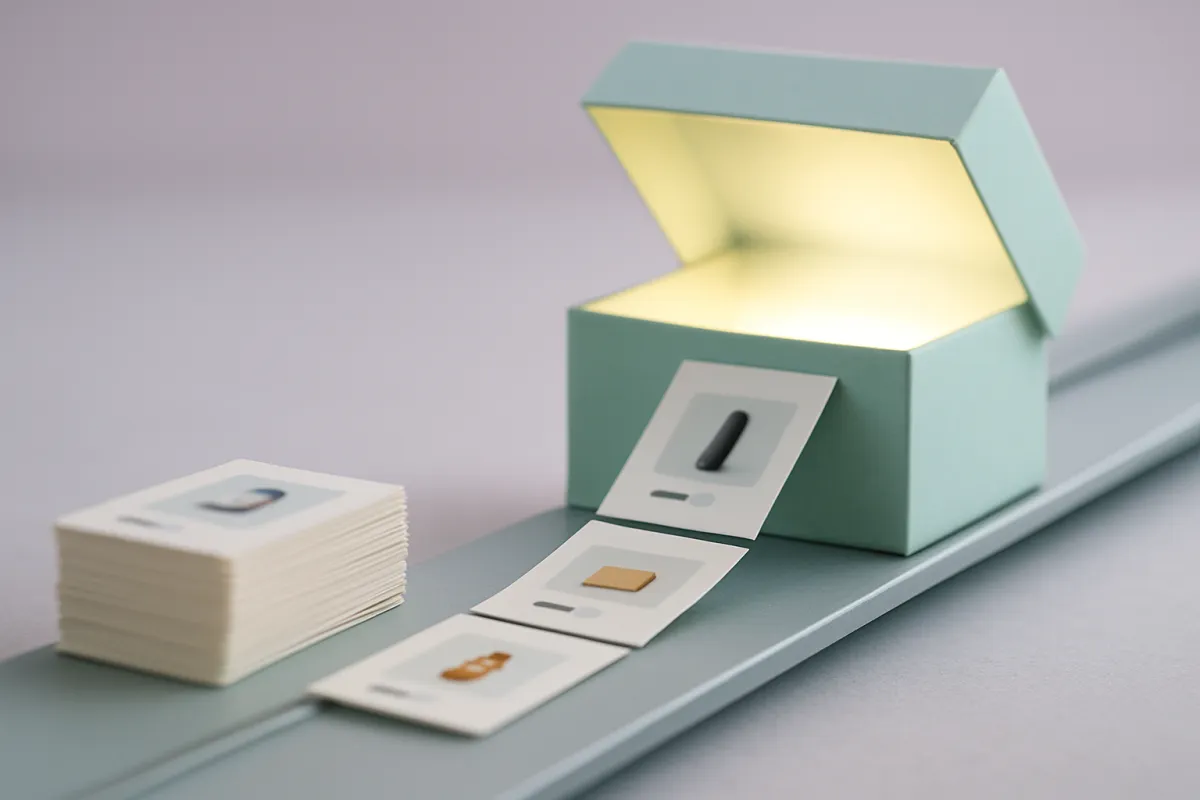
To show up in Google Shopping, your products usually need to be in Google Merchant Center as a feed. A feed is just a data file with a row for each product. Most website builders can create and update this feed for you automatically, so you're not editing spreadsheets by hand.
Whatever you use, these feed fields matter most:
| Field | Why it matters |
|---|---|
| Title | Tells Google what the product is and who to show it to. |
| Description | Adds detail and matching keywords for more searches. |
| Image link | The main photo shoppers see on the Shopping card. |
| Price | Must match your website price exactly, or Google may reject it. |
| Availability | Shows if the item is in stock so you don't advertise sold-out goods. |
| GTIN or product ID | A unique code that helps Google match your product correctly. |
The number one reason products get rejected is a price or stock mismatch between the feed and the live page. Keep them in sync. A connected store that updates the feed when you change a price saves you a lot of headaches, which ties into keeping your inventory management tidy in the first place.
Write descriptions that answer real questions
Your description is your quiet salesperson. It should answer the questions a shopper has before they buy, in the same words they'd use. Instead of vague lines like "premium quality," say what makes it good: "dishwasher safe," "holds 350ml," "fits a standard shelf."
Write for a person first and Google second. Cover the material, the size, how to use it, and who it's for. Sprinkle in the natural search terms, but never repeat the same phrase over and over. If shoppers keep asking the same thing, add a short product FAQ right on the page. It removes doubt and gives Google extra useful content to read.
Add structured data so Google trusts your page
Structured data is a small piece of code that spells out the facts of your product: name, price, availability, and reviews. You can't always see it, but Google reads it to show rich results, like a star rating or price under your link. Most modern website builders add this for you when you fill in the product fields, so you may already have it. If not, it's worth turning on.
If you show review stars, they must be real reviews from real buyers. Faking them breaks Google's rules and can get your product removed. Honest reviews build trust and often lift your click rate, so it's worth asking happy customers to leave one.
Keep prices, stock, and details accurate
Google rewards pages it can trust. If your Shopping card says $20 but your page says $25, that's a mismatch, and Google may stop showing it. The same goes for stock. Advertising something that's sold out annoys shoppers and hurts your account.
A few habits keep you safe:
- Update prices in one place and let your store push the change everywhere.
- Mark items out of stock as soon as they sell out.
- If you sell in different countries, keep currency and pricing clear. Our guide on multi-currency pricing explains how to do this cleanly.
A quick example to tie it together
Say you sell handmade candles. You rename your photo to "soy-candle-lavender-200g.jpg," shoot it bright on a white background, and add alt text describing it. Your title reads "Hand-Poured Soy Candle, Lavender, 200g." Your description covers burn time, scent, and safe use, and you add three real customer reviews. Your store feeds all this to Google Merchant Center automatically, with the correct price and stock.
Now that one candle can appear as a Shopping card, an image result, and a normal search link. You did the work once, and it keeps bringing in shoppers without you paying for every click.
Your simple checklist
- Write clear titles with product type, brand, and key details.
- Upload bright, sharp photos on a clean background, from several angles.
- Rename image files and add honest alt text.
- Set up a product feed and keep price and stock accurate.
- Write descriptions that answer real buyer questions.
- Turn on structured data and show only real reviews.
You don't have to do all of this in one sitting. Fix your titles and images first, since they give the biggest boost, then work through the rest over a week. If you'd rather skip the technical setup, a builder like vq.pe lets you manage products, images, and payments in one place and can keep your Google feed in sync as you go. Start with one product page today, get it right, and use it as the template for the rest.