
How to Set Up Local Pickup and Delivery in Your Store
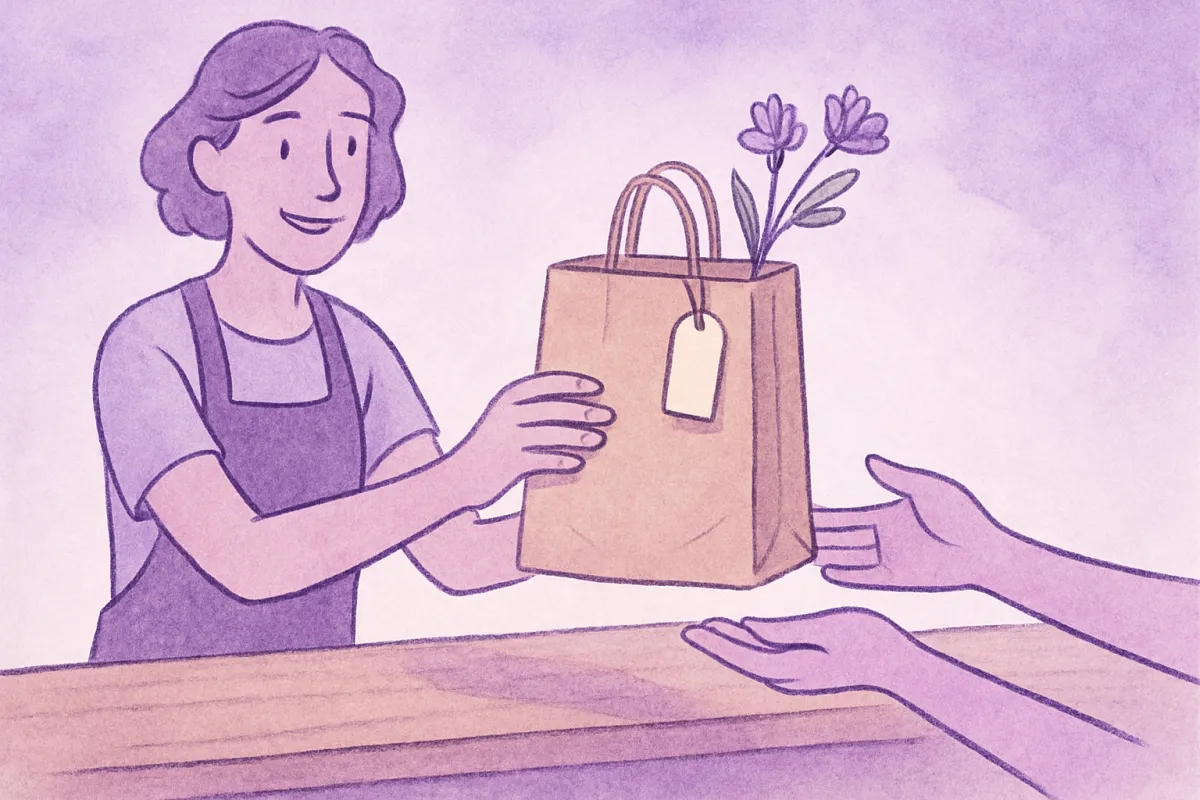
Selling to people near you? Learn how to add local pickup and delivery options to your online store so nearby customers can order and get their stuff fast.
If most of your customers live near you, shipping isn't always the answer. Some of them would rather swing by and grab their order, or have it dropped off the same day. That's where local pickup and delivery come in. Set them up well and you save on postage, cut waiting time, and give nearby buyers a reason to choose you. This guide shows you how to add both to your online store, in plain steps anyone can follow.
What local pickup and local delivery actually mean
Let's keep it simple. These are two ways to get an order to a customer without using a courier or postal service.
- Local pickup means the customer buys online and comes to collect the order themselves. That could be your shop, your home, a market stall, or a spot you both agree on.
- Local delivery means you (or someone you hire) drops the order at the customer's address, usually within a set area like your town or a few nearby neighborhoods.
Both are great for food, flowers, baked goods, plants, handmade items, groceries, and anything fragile or heavy. They're also handy when someone needs their order today, not in five days.
Why these options are worth adding
Adding pickup and delivery isn't just a nice extra. It solves real problems for both you and your buyer.
- You save money. No packaging for postage, no courier fees eating your profit.
- Customers wait less. Same-day or next-day beats a week of tracking numbers.
- Fewer damaged orders. Handing something over by hand is gentler than a delivery truck.
- You meet your buyers. A quick hello at pickup builds trust and brings people back.
If you already have local customers walking past or finding you on maps, these options turn casual interest into easy sales. It helps to make sure people can find you first, so setting up your Google Business Profile to get found locally pairs really well with offering pickup.
Step 1: Decide where and when pickup happens
Before you touch any settings, get clear on the basics. Write down the answers to these questions:
- Where do people pick up? A shop address, a safe spot near your home, or a stall on certain days.
- What days and times? For example, weekdays 10am to 6pm, or Saturdays only.
- How long until an order is ready? Same day? Two hours? Next morning? Be honest here.
- How will the customer know it's ready? A text, an email, or a call.
Keep it realistic. It's better to promise "ready in 24 hours" and beat it than to promise two hours and leave someone standing outside your door.
Step 2: Decide your delivery area and fee
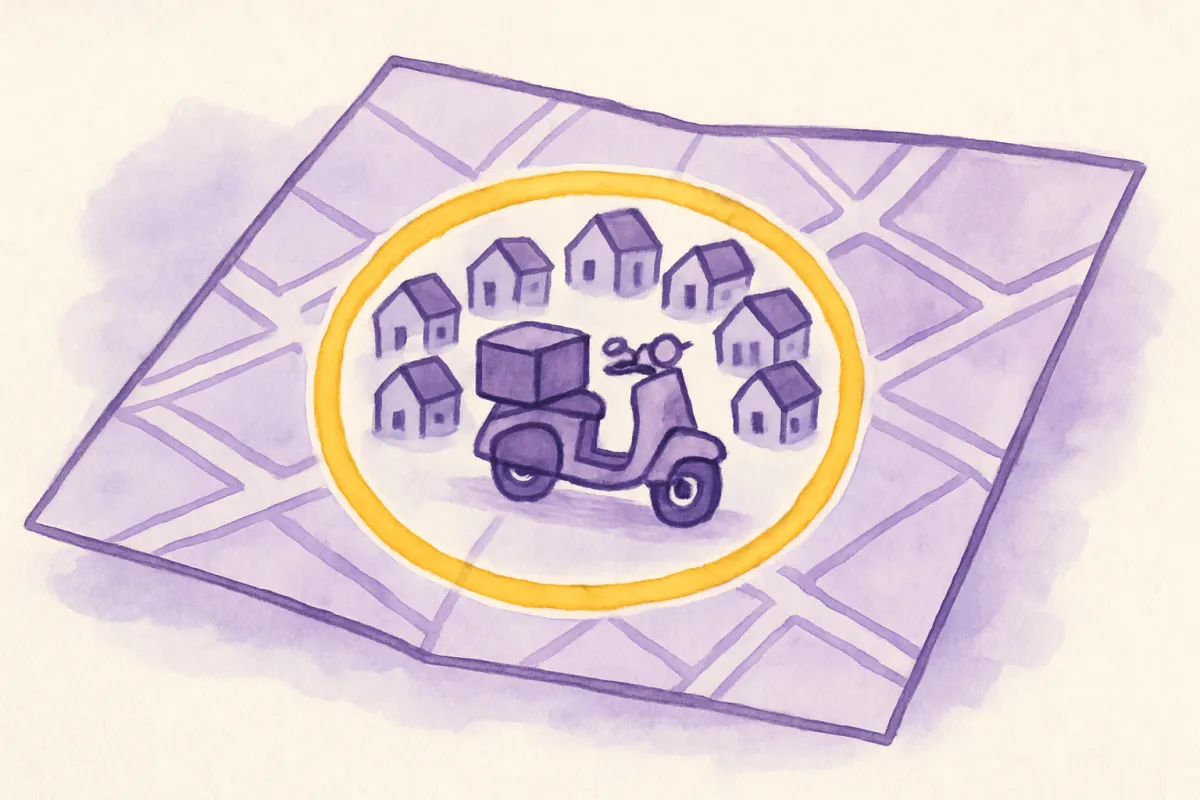
Local delivery only works if you set clear limits. You can't drive an hour for a small order and still make money. Pick your area in a way that's easy to explain.
- By distance: "We deliver within 5 km of the shop."
- By area name: "We deliver to the city center and these three neighborhoods."
- By postal code: List the codes you cover.
Then set a simple fee. You have a few easy options:
- A flat fee for the whole area, like a fixed charge per order.
- Free delivery over a minimum order, and a small fee below it.
- Different fees for different zones, if some spots are farther.
Whatever you choose, make it clear at checkout so there are no surprises. Nothing loses a sale faster than a hidden charge popping up at the last step.
Step 3: Add the options in your store
Now the practical part. In most online store tools, pickup and delivery live in your shipping or delivery settings. The exact wording varies, but the idea is the same everywhere. You're adding new delivery methods that customers can pick at checkout instead of postage.
Here's the general flow:
- Open your store's shipping or delivery settings.
- Add a method called something clear, like "Local Pickup" and set its cost (usually free).
- Add another method called "Local Delivery" and set its fee and area.
- In the description of each, spell out the details: pickup address, hours, delivery area, and how long it takes.
- Save and place a test order yourself to check both options appear.
On a builder like vq.pe, you can turn on pickup and delivery alongside your normal payment options, so a nearby buyer can choose "collect in person" and pay by card, UPI, wallet, or cash, all in one checkout. If you're still sorting out how buyers pay, this guide on how to set up checkout for UPI, cards, wallets, and cash on delivery covers the payment side.
Step 4: Write clear instructions so nobody is confused
Most pickup and delivery problems come from unclear instructions, not the process itself. Spell everything out in simple words. Put the key details right on the checkout option and repeat them in the order confirmation.
Good pickup instructions might read like this:
Pickup from 12 Market Street. We'll text you when your order is ready, usually within a day. Come by weekdays between 10am and 6pm. Please bring your order number.
Good delivery instructions might read like this:
We deliver within 5 km, Tuesday to Saturday. Orders placed before noon arrive the same day. We'll message you before we set off.
It's smart to gather these details on a help page too. A short FAQ page that answers buyer questions saves you from repeating the same replies all day. And if you send orders by post as well, a clear shipping policy that sets clear expectations keeps every option in one tidy place.
Step 5: Handle the handover smoothly
The order is placed. Now what? A little system here keeps things calm.
- Confirm quickly. Send a message that says "Got your order, we'll let you know when it's ready."
- Notify when ready. For pickup, tell them clearly where to go. For delivery, tell them roughly when you'll arrive.
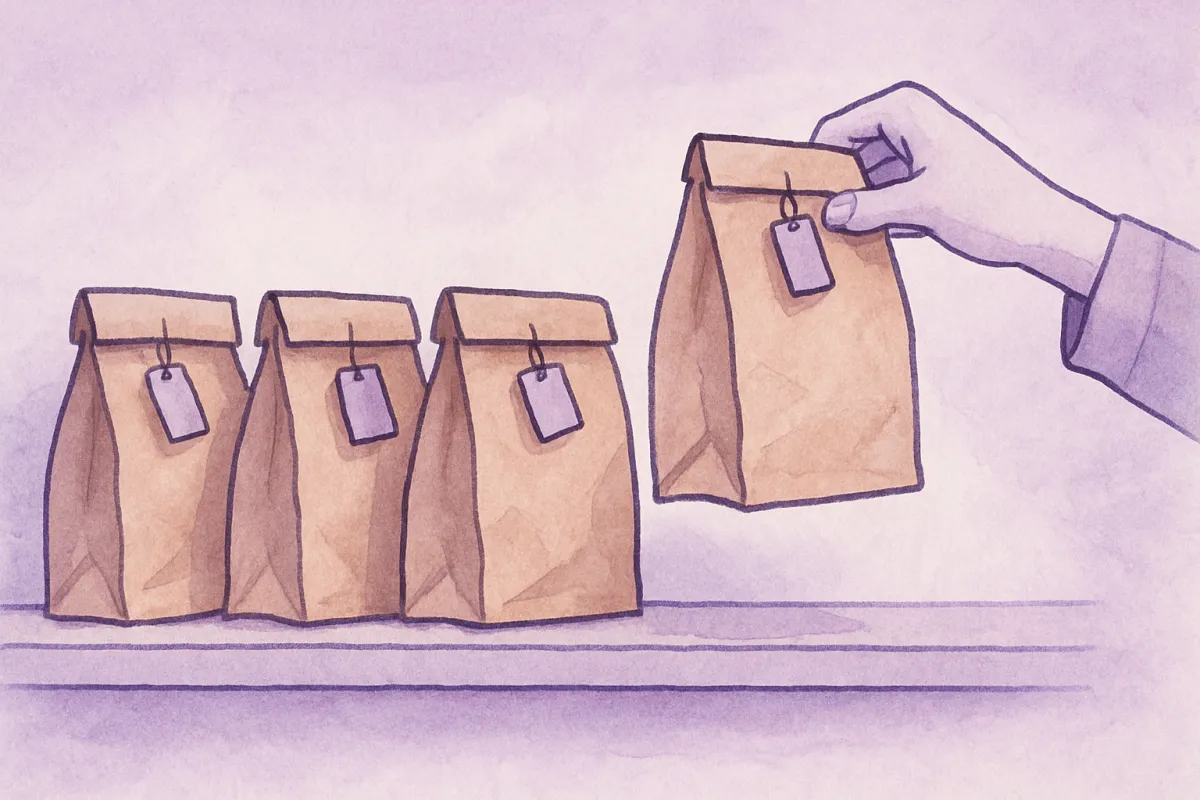
- Keep orders labeled. Write the customer's name and order number on the bag so you grab the right one.
- Have a backup plan. What if they don't show up for pickup, or nobody's home? Decide how long you'll hold an order and whether you'll re-deliver.
Fast, friendly replies make a big difference. If people often message before ordering, adding live chat to your website lets you answer "do you deliver to my area?" in seconds, which turns a maybe into a sale.
A quick example
Say you bake cakes from home. You set pickup as free, from your door, weekends 9am to 1pm, ready the day before. You set delivery within 4 km for a small flat fee, only on Saturdays. A customer three streets away orders a birthday cake on Thursday, picks delivery, and pays online. On Saturday morning you text "heading over now," drop it off, and they leave a review. No courier, no packaging stress, no waiting a week. That's the whole point.
Common mistakes to avoid
- Being vague about times. "Pickup available" isn't enough. Give days and hours.
- Delivering too far. A huge area sounds generous but drains your time and profit.
- Forgetting to charge fairly. Free delivery is lovely, but only if the numbers still work.
- No confirmation message. Silence makes customers nervous. A quick note fixes it.
- Not testing it yourself. Always place a fake order to see what the buyer sees.
Local pickup and delivery are some of the easiest wins in a small online store. You already have the products and the customers nearby. All you're doing is giving them a faster, friendlier way to get their order. Start with pickup since it's the simplest, add delivery once you're comfortable, and adjust your area and fees as you learn. When you're ready, open your store settings, add the two new options, and test them today.